 mcskinn
THE MCSKINN FIELD GUIDE
How to Play
MCPE / Bedrock
for Beginners
Your first world starts here. Get comfortable with the controls, build your first tools, and turn a new Survival world into somewhere you can call home.
Make a world. Practice moving and placing blocks. In Survival, gather wood, craft tools, and prepare shelter before night. Add skins and add-ons once the basics feel familiar.
What is MCPE, and is it the same as Bedrock?
MCPE means Minecraft: Pocket Edition, the earlier name for the mobile version of Minecraft. Pocket Edition became part of Bedrock Edition in 2017. Today, the Android and iOS versions belong to the Bedrock family, alongside supported Windows and console editions.
When you search for an MCPE map or add-on, check that it supports your current Bedrock version and device. Java Edition content is not automatically compatible with Bedrock. Source: Microsoft’s edition comparison.
Start with a world that suits you
Install Minecraft from an official store or Minecraft’s download page. Open the game, select Play, and choose the option to create a new world. Give it a recognizable name, review its settings, then create it. Button wording can vary by device and update.
Creative: learn without pressure
Choose Creative if you want to practice movement, explore blocks, and build freely. Materials are readily available, you can fly, and ordinary Survival threats are removed.
Survival: build your first adventure
Choose Survival to gather supplies, make tools, manage hunger, and prepare for hostile mobs. Start with a manageable difficulty rather than trying to master every system immediately.
Our suggestion: spend a few minutes placing and breaking blocks in Creative, then make a separate Survival world when the controls feel familiar. Read Minecraft’s guide to Creative and Survival.
Learn the controls before exploring
On a phone or tablet, use the movement controls to walk and drag on the view area to look around. Select items from the hotbar, then use the controls for breaking, placing, or interacting. Touch layouts differ, so explore the game’s touch settings before relying on a particular button position.
| Action | Practice task |
|---|---|
| Move and look | Walk around a tree without falling into a hole. |
| Break and collect | Break a log and pick up the dropped item. |
| Select and place | Choose a block in your hotbar and place it nearby. |
| Open your inventory | Find your materials and the crafting interface. |
On Windows, standard keyboard controls include WASD for movement, mouse movement to look, and Space to jump. Controller players can review their button mappings in settings. See the official keyboard, controller, and touch controls.
Your first Survival tools: wood, crafting table, stone
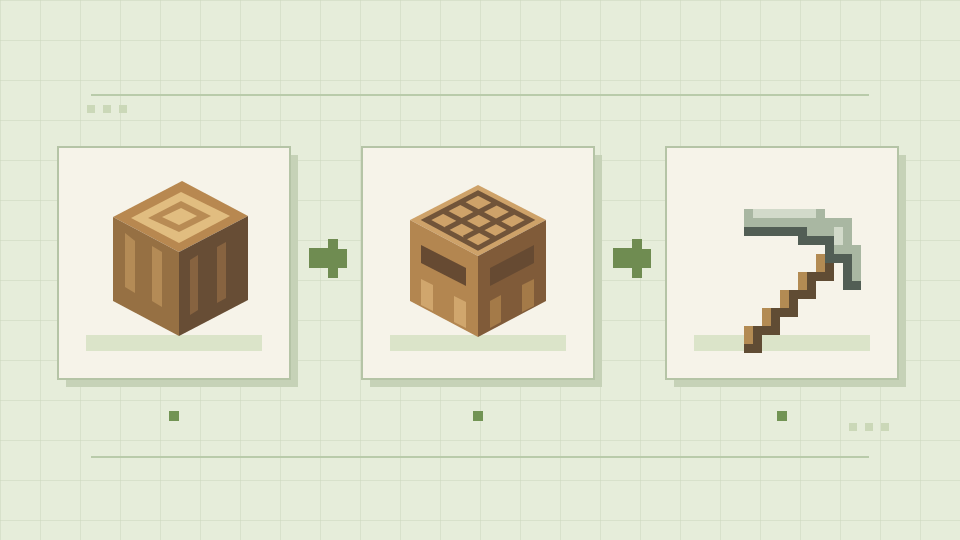
- Collect logs. Break part of a tree and gather the drops. Turn the logs into planks using your inventory’s crafting interface.
- Make a crafting table. Four planks create a table. Place it down and interact with it to access more recipes.
- Craft a wooden pickaxe. Make sticks, then use the recipe book to find the pickaxe recipe. Take it to exposed stone.
- Upgrade to stone. Mine cobblestone with the wooden pickaxe, then make stone tools. Save spare materials for a furnace.
Use the recipe book to check ingredients instead of trying to memorize every crafting pattern. A furnace needs eight cobblestone; it helps you cook food and process materials. Adapted from Minecraft’s first-day guide.
Prepare food, light, and shelter before night
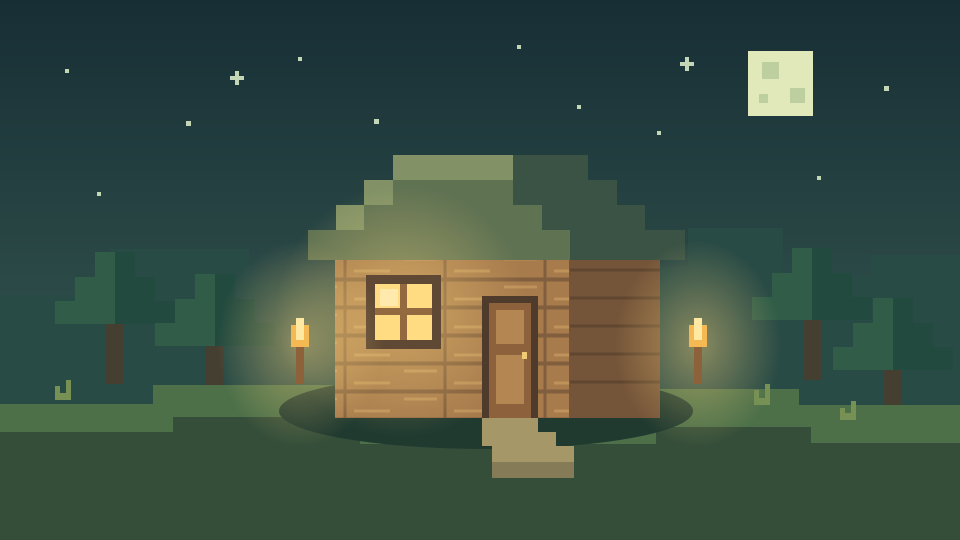
Before sunset, focus on a small protected space rather than a perfect house. Build walls and a roof, close the entrance, and light the interior. Staying near your starting area also makes it easier to find your way back.
Keep food available and use a furnace to cook it. When you have the materials, craft a bed using the recipe book. Sleeping lets you skip the night and can establish your respawn point; keep the bed accessible and intact.
Shelter first. Light the space. Keep food nearby. Make a bed when you can. A simple base is enough to begin.
Hostile mobs make nighttime more demanding, so avoid unnecessary exploration until you are prepared. Source: Minecraft’s first-night survival tips.
Understand skins, maps, and Bedrock add-ons
Skins change your character’s appearance. In Bedrock, start with Dressing Room to explore character and classic-skin options. Available customization and import options depend on your platform. See Minecraft’s skin guide.
Maps give you another world to explore. Add-ons can introduce or change content in a Bedrock world. Once a compatible add-on is installed and available, edit your world and look under Resource Packs or Behavior Packs to activate it. Some content uses both. See the official add-on activation instructions.
Learn the base game first, then try one addition at a time. Check its supported version and follow the creator’s instructions. Make a copy or backup before changing a world you care about; recreating a world from its seed does not restore your builds. Read Minecraft’s world backup guidance.
Ready to personalize your game? Explore Mcskinn’s mod apps and included skins.
Join friends when you are ready
To join a friend’s Bedrock world online, sign in with your Microsoft account, add each other as friends, and have the host open a multiplayer-enabled world. Look for their joinable world in the game’s friends area.
If it does not appear, check that both players are on compatible current versions and that account permissions allow multiplayer. Child accounts may need permission from a parent or guardian; console online play may also require the platform’s subscription. Official help: join a friend’s Bedrock world.
Beginner questions, answered
Should I choose Creative or Survival first?
Start in Creative to practice controls and building. Choose Survival when you want resource gathering and a first-night challenge. Separate worlds let you enjoy both.
Do I need mods to start playing Minecraft?
No. Start with the base game. Mods and add-ons are optional ways to customize the experience once you understand the basics.
Does this guide work for mobile Bedrock?
Yes. It is written for beginners on Bedrock, including mobile players who search for MCPE. Your touch layout and menu labels may differ by device and game version.
Sources and review notes
This guide is written and refined by Mcskinn using the official Minecraft and Microsoft documentation linked throughout. Menus, touch layouts, and content compatibility can change with game updates. Consult the linked instructions when your screen differs.
- Microsoft Learn: Bedrock and Java differences
- Minecraft: Creative vs. Survival
- Minecraft: Controls
- Minecraft: Survive your first day
- Minecraft: Survive your first night
- Minecraft: What is a skin?
- Minecraft Help: Activate an add-on
- Minecraft Help: Join a friend’s Bedrock world
- Minecraft Help: Back up your world